Wyze Cam Pan 1080p Pan/Tilt/Zoom Wi-Fi Indoor Smart Home Camera with Night Vision and 2-Way Audio
Wyze Cam 1080p HD Indoor Wireless Smart Home Camera with Night Vision, 2-Way Audio, Works with Alexa
Setup was easy.


The password would be filled in above but see below.

No the QR code will not work even on my network since the password was blanked.
However when I went to check the video a week later for some samples to post and it had quit recording after a day. The camera was still tracking movement just not recording to the cloud. I had not put an SD in yet so there was nothing to check there. So I deleted the camera from the app, reset the cam and did a readd. But it would not connect. I wasted hours trying stuff. Finally I tried setting up a wide open Access Point (AP) and noticed the password was still filled in. I removed it and it connected. Repowered and it still reconnected so I wiped it all and readded to the secured guest network and it still works. While I was at it I stuck a 32 GB SD in it.
So far it looks like it is running just under 1 Mbps bandwidth. Their specs recommend 1.5

So far the main drawbacks are:
- Only records to SD or the cloud
- Only saves triggered video. No 24/7
- You can only view video from the phone app (no web viewing).
- No easy way to change WiFi password.
- Some suspicious network activity has been reported so only use on a guest or other isolated network.
- The above also probably means you should think twice about putting the app on and phone or tablet that has sensitive info on it.
Pluses:
- Free 7 days of cloud recording.
- Ridiculously cheap at just $38 including shipping.
- Seems to do an OK job of tracking (by doing pan and tilt) and marking moving object in the video. (See videos below.) Note people have reported being creeped out by this and have to admit it does feel a bit weird and makes the camera seem a bit alive. I was actually surprised how little video was saved vs the amount of time the cam appears to be panning to look at things.
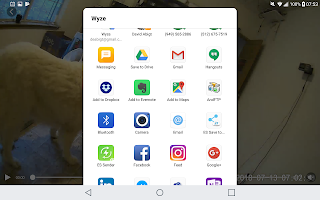
- Can save / send video to a huge number of services
- Alexa support just added.


I posted some sample videos on YouTube with the motion and sound detection at the default values and motion detection masked to around the dog door. Unfortunately I can not really show you the mask because when you go back in to modify the mask it only shows till the video kicks in and then defaults back to the whole screen.


Basically it is top to bottom from the wall socket to the edge of the window.
Main things to note here are how random the video is. It was triggered by noise way more than motion.

Lastly connecting the cam is slow and fails fair amount. Being an encrypted guest network might be a factor in that though as mentioned above I would definitely suggest isolating from your network like that.
Since the cam does not record 24/7, if this was my only cam in there I would be thinking of taking off the mask and cranking the sensitivity. Though that would probably make finding video of actual motion harder to find. As is I already have 2 cameras recording 24/7 in there to me it is mainly another motion detector and hopefully gets a close up of who is using the door should I need to know. If they made an outdoor version of this I'd definitely have a spot for it and would probably recommend at double the price. Would think about a couple for the barn if I could monitor on a local PC since most of my cams are to let me see what is going on (as in what has the dogs upset) with as little distraction / time wasted as possible. Having to open an app, connect to a cam and find a notification just does not do that. To notify you with a video if something is moving where there should be no motion it is not bad. Especially for the price.
Update: 8/11/2018 More issues.
Found these instructions online for using Tiny cam to bridge the cam to the local NVR. They did not work for me. Might be some sort of manual firewall config though. Note they seem to connect to the server not the cam directly so you might be burning as much down bandwidth as up using them. When you test your connection it says it is receiving something but dropping all frames even if you point it at an address that does not respond which is either misleading or something else is going on.
However, trying to debug first I checked the regular app and it could not connect either till I rebooted the cam. Even after rebooting the cam it kept dropping out. So that might be an issue too. Oddly there are plenty of recordings which would seem to indicate the stream is getting to the cloud.
On a whim I tried connecting with the Amazon Show. But it now seems to think my one cam is two cams with the same name and will not connect to I rename one.
Update 11/22/2018: Got Tinycam to link to Blue Iris
Note I started with Pro version this time. Not sure if that was a factor in it working this time.
First off follow the instructions from above to get Wyze talking to Tinycam.
Note when selecting Wyze and the cam type cloud is the only protocol available despite what the pics in the instructions sem to show. Then in Blue Iris setup your video config like this

The host and port come from the Tinycam app as mentioned in the instructions. Note the capital I in cameraId.
The value can be found be pulling up the live view of the camera in a browser. The first screen you see when you point your browser to the Tinycam web server is the status / maint screen.

Click on the All Cameras button and you get something like this.

Click the fullscreen icon


This should get you connected however for for me:
- The first cam, the pan version, connected fine but second, a V2, was iffy getting to show in the phone interface, web interface and never did connect to Blue Iris while I was sorting all this. I did move the V2 closer to the AP though and it started working so it might be a WiFi issue. Especially then coupled with its failure to connect in the driveway.
- The Samsung Note 4 I was running Tinycam Pro on got hot and the drain on the battery even with the display turned off was high enough the battery ran out after s few hours. After recharging the phone, only running the Tinycam app, removing it from the case and placing it across a pyrex bowl to maximize air flow I got it to run overnight without overheating or the battery going dead.
- Lastly it appears Tinycam is pulling from the cloud service which means you will be buring double the external bandwidth that would only be local with a camera with ONVIF or RSTP support.


In the load chart below it appears there is an upload of around 7-9 Mbps from the 2 cams. There is of course other stuff going on which spikes the upload to 20 Mbps or more and the download is an almost constant 40 Mbps. But again in the dips is a matching 7-9 Mbps load.

Here is a shot of the Tinycam stats screen the second day showing a bit on improvement over the day before.

After a couple days of up and downs I can't say I recommend Tinycam as a bridge or a constant view solution. Though at least some of the problems are probably Wyze related. I had both cams working for awhile the cameras seemed to take turns being offline. I tired installing on Bluestacks which seemed to have similar viewing issues and as far as I can see, no way to make the web server part of Tinycam accessible outside of Bluestacks. I also tried it on my new LG G Pad 2 a lot more powerful than the Note 4. Unfortunately the best I could do was get one camera to connect. I should note here too even the Wyze app was having issues talking to the cams despite signal levels of up to -26 db (99%). In fact I saw more issues with the cam with the stronger signal.
The last thing to try is OpenIPC Firmware for Wyze Cameras
It is basically rooting the camera to convert it to a simple WiFi camera. It is open source and appears to be a simple SD card install.Note "Set up Wifi in the SD card config folder wpa_supplicant.conf" in the instructions means rename wpa_supplicant.conf.dist to wpa_supplicant.conf then edit it to change SSID and such to match your WiFi network.
ctrl_interface=/var/run/wpa_supplicant
ctrl_interface_group=0
ap_scan=1
network={
ssid="SSID"
# Uncomment to connect to Hidden SSIDs
#scan_ssid=1
key_mgmt=WPA-PSK
pairwise=CCMP TKIP
group=CCMP TKIP WEP104 WEP40
psk="PW"
priority=2
}
However once I did this the camera would no longer connect to WiFi. Seems this is a known issue. After some research on Raspberry Pi blogs I found some dos that said priority=2 is only if you have more than one WiFi you use. removing it seems to have solved it.
I also discovered the demo.bin file is a boot loader altered to look at the SD so you really only have to mess with the holding the button bit the one time. I should also note the OpenIPC version has all the logging stripped out of run.sh so when things go wrong it is impossible to know what happened. So added some back similar to what was in the Dafang hacks and a couple things of my own in mine to help sort things.
CONFIGPATH=/system/sdcard/config
LOGDIR="/system/sdcard/log"
LOGPATH="$LOGDIR/startup.log"
if [ ! -d $LOGDIR ]; then
mkdir -p $LOGDIR
fi
echo "==================================================" >> $LOGPATH
echo "Starting OpenIPC" >> $LOGPATH
echo "==================================================" >> $LOGPATH
## Update hostname:
hostname -F $CONFIGPATH/hostname.conf
## Load kernel modules
insmod /driver/tx-isp.ko isp_clk=100000000
##insmod /driver/sensor_imx323.ko
insmod /driver/sensor_jxf22.ko
##insmod /driver/sensor_ps5230.ko
insmod /driver/exfat.ko
insmod /driver/sample_motor.ko
insmod /driver/audio.ko spk_gpio=-1 sign_mode=0
insmod /driver/sinfo.ko
##insmod /driver/8189es.ko
insmod /driver/sample_pwm_core.ko
insmod /driver/sample_pwm_hal.ko
insmod /driver/rtl8189ftv.ko
##insmod /system/sdcard/driver/sensor_jxf22.ko data_interface=2 pwdn_gpio=-1 res et_gpio=18 sensor_gpio_func=0
## Fix IR:
echo 63 > /sys/class/gpio/export
echo out > "/sys/class/gpio/gpio25/direction"
echo out > /sys/class/gpio/gpio63/direction
echo 1 > /sys/class/gpio/gpio63/value
## Start Wifi:
echo Start Wifi: >> $LOGPATH
wpa_supplicant -D nl80211 -iwlan0 -c $CONFIGPATH/wpa_supplicant.conf -B &
sleep 5
wpa_supplicant_status="$(wpa_cli status)"
echo "wpa_supplicant: $wpa_supplicant_status" >> $LOGPATH
#udhcpc -i wlan0 -s /system/etc/udhcpc.script -q
udhcpc -i wlan0 -p /var/run/udhcpc.pid -b -x hostname:"$(hostname)" >> $LOGPATH 2>&1
## NTP Server
echo Start ntpd: >> $LOGPATH
ntp_srv="$(cat "$CONFIGPATH/ntp_srv.conf")"
/system/sdcard/bin/busybox ntpd -q -n -p "$ntp_srv" # run ntp update >> $LOGPATH 2>&1
## Start FTP & SSH
echo Start FTP-SSH: >> $LOGPATH
/system/sdcard/bin/dropbearmulti dropbear -R >> $LOGPATH 2>&1
/system/sdcard/bin/bftpd -d >> $LOGPATH 2>&1
## Start Webserver:
echo Start Webserver: >> $LOGPATH
/system/sdcard/bin/boa -c /system/sdcard/config/ >> $LOGPATH 2>&1
## Autostart
for i in /system/sdcard/config/autostart/*; do
echo Start $i: >> $LOGPATH
$i >> $LOGPATH 2>&1
done
On the plus side if all else fails just powering it up without the SD card seems to set it back to where it was when first set it up with your config intact.

The password is ismart12
Note you need to type in the Video Path and change the RTSP port.
I have not fully tested it yet but it seems like many of the controls do not actually work and or go back to defaults after reboots.
 Other I've noticed so far
Time seems to ignore timezone and shows UTC
The video stream seems to be 720p no matter what the value Manage->Setting->Resolution are set to.
Manage->Setting->Display debug info on OSD look useful
Bumping the cam seems to be too much motion for it to deal with,

CPU is really cranking and the cams seems to be running hotter than it did before the new firmware.
Motion detection does not seem to actually doing anything till you configure it and then only puts a dot in the upper right corner

It is hard to say how much CPU motion detection is using but given I've seen it hit 100% it does not seem to be worth the overhead.
Lastly night vision does not seem to be working right. Setting Manage->Setting->RTSP->Night Vision to On seems to flip it into night vision mode for a second then it flips back even when it is too dark to see anything unless you turn off IR Cut first. There might a set of clicks that get this working but this would seem to indicate it is not planned to be fixed.
So with the IR Cut on my hall at night with just the light from the bath room looks like this from the Wyze V2.
 For comparison here to the view from the kennel looking back the other way.
 If I turn off the IR Cut you can see a lot more
 Which really is not that bad other than the tint. If I turn the lights on in the hall it is not enough to mask the tint though it should be bright enough in the daytime.
 Was about to give up on this for the night when I went though the process one last time and this time there was no tint. This it the options I ended up with.
 And here is the working night shot.

Update 4/29/2019 Wyze adds RTSP support.
Tried it on my Pan and was as easy as and similar to the OpenIPC SD card style upgrade though with less needed config. Details here. So far seems like everything else looks the same. Given how hard OpenIPC drives the V2 I figured something would have to go. If the cam does not fry from the load I'll be impressed. By the next morning the case was still cooler than the V2 running OpenIPC. I did notice bumping the cam when I felt the case seemed to freak out the tracking for a bit causing the cam to bounce back and forth for a while. Had to stick my hand in front of it to give it a simple view to calm it down.
Update 5/18/2019 Wyze RTSP definately better than the OpenIPC firmware.
Bottom line, I bought another V2 to try this on after the Pan and was impressed enough to get another and convert the V2 I had OpenIPC on to the Wyze RTSP firmware.
Caveats:
On the plus side.
Reliability of the stream seems unchanged. I've gone to just putting them on Etekcity plugs and having my home automation system repower them if they are offline for more than a few minutes to workaround that. Still all and all it tough to beat for $25 and $38. Especially when you get 3 way storage. On the SD card, 24/7 stream to NVR and alerts to the cloud. That should insure you always know what happened.
Working with Blue Iris
If you got the OpenIPC working OK then to get Blue Iris to use it you need a video config like this
Note you need to type in the Video Path and change the RTSP port.
I have not fully tested it yet but it seems like many of the controls do not actually work and or go back to defaults after reboots.
Time seems to ignore timezone and shows UTC
The video stream seems to be 720p no matter what the value Manage->Setting->Resolution are set to.
Manage->Setting->Display debug info on OSD look useful
Bumping the cam seems to be too much motion for it to deal with,

CPU is really cranking and the cams seems to be running hotter than it did before the new firmware.
Motion detection does not seem to actually doing anything till you configure it and then only puts a dot in the upper right corner

It is hard to say how much CPU motion detection is using but given I've seen it hit 100% it does not seem to be worth the overhead.
Lastly night vision does not seem to be working right. Setting Manage->Setting->RTSP->Night Vision to On seems to flip it into night vision mode for a second then it flips back even when it is too dark to see anything unless you turn off IR Cut first. There might a set of clicks that get this working but this would seem to indicate it is not planned to be fixed.
So with the IR Cut on my hall at night with just the light from the bath room looks like this from the Wyze V2.


Update 4/29/2019 Wyze adds RTSP support.
Tried it on my Pan and was as easy as and similar to the OpenIPC SD card style upgrade though with less needed config. Details here. So far seems like everything else looks the same. Given how hard OpenIPC drives the V2 I figured something would have to go. If the cam does not fry from the load I'll be impressed. By the next morning the case was still cooler than the V2 running OpenIPC. I did notice bumping the cam when I felt the case seemed to freak out the tracking for a bit causing the cam to bounce back and forth for a while. Had to stick my hand in front of it to give it a simple view to calm it down.
Update 5/18/2019 Wyze RTSP definately better than the OpenIPC firmware.
Bottom line, I bought another V2 to try this on after the Pan and was impressed enough to get another and convert the V2 I had OpenIPC on to the Wyze RTSP firmware.
Caveats:
- Wyze appears to have no plans to update this firmware. A taxing as the OpenIPC firmware is on this hardware and the recent announcement about using the cams as hubs for sensors I would imagine they have crammed about all they can into these versions of the cams. Update 8/28: see Wyze RTSP updates.
- Tracking on the Pan is a bit glitchy with the RTSP firmware. Cranking down the sensitivity helps but the cam sometimes just starts bouncing back and forth. See this video for an example.
On the plus side.
- Both the V2 and Pan are supported where OpenIPC sort of does.
- The camera runs somewhat cooler
- I'm not seeing the pixel distortions (see above) anymore.
- You retain all the Wyze features including the output resolution, working day/night switch and rectangles around motion.
Reliability of the stream seems unchanged. I've gone to just putting them on Etekcity plugs and having my home automation system repower them if they are offline for more than a few minutes to workaround that. Still all and all it tough to beat for $25 and $38. Especially when you get 3 way storage. On the SD card, 24/7 stream to NVR and alerts to the cloud. That should insure you always know what happened.


