Showing posts with label Blue Iris. Show all posts

Wednesday, October 6, 2021

Quick Blue Iris with DeepStack debug

Note this write refers to Blue Iris version 5.5.0.13 which is a beta release so there may be some differences to the version you are using.

First things first

Make sure you only have one or no custom model in the folder Blue Iris is looking for custom models in. The doc indicate multiples are supported but this appears to be wrong. If there is more than one it appears none of them work and in some versions even the non custom models stop working.

Also if you are running DeepStack with -e MODE=High try -e MODE=Medium instead and see if that fixes things. I've was seeing random 500s in High mode though the system did not appear to be maxed out in any way. It was taking a lot longer to respond too. In Medium getting around 300 ms times while High was taking seconds. High mode will detect more objects though.

DeepStack Windows native will not start from Blue Iris

They changed the name of the program at one point. Check in \DeepStack\server for server.exe and deepstack.exe. Copy the one you have to the one you do not. That way what you versions of Blue Iris and DeepStack can talk.

Turn on DeepStack save details.

To do real debug you need to turn on Save DeepStack analysis details for the camera. Open camera properties, go to the Trigger tab and click on Artificial Intelligence.
AI options dialog

This will create a ".dat" file in the Alerts folder for each alert with info about the frames DeepStack processed.
Alerts folder listing

Find the alert pic.

If you are here you are probably have this but if you are just not seeing an alert clip for something you know should be there start here. Open the cancelled alerts folder and find the alert picture you think should have triggered and alert. 

Note if there is no alert you have a motion detection issue. DeepStack analysis below sends frames ignoring motion and object to detect settings for the camera.

If you have an alert that you think DeepStack should have triggered an notification for here are some simple things to check:

Does the motion alert have a return 100 or -1 for the memo?

If so DeepStack has crashed or hung. Either way it needs restarted.

Still getting a return 100 or -1 for the memo after restart?

Ran into this the other day on one of my servers. After a restart DeepStack would work for a few minutes and the stop. Looked in the logs (docker logs for Docker installs) and found the return codes of  200 changed to a 400 then 500s. I tried several things. I backed out the last change, restarted and watched to see if I could sort an event causing the crash but it just kept working. So hard to say what to do other than keep restarting DeepStack till it stays running.

Does the motion alert have a nothing found for the memo?

Double click on the alert picture you want to debug and turn on analyze by right clicking in the playing clip and selecting.

Analyze options select 

I find it helpful to turn on overlays as well.
Overlay options selection

Next open the DeepStack console via the status icon.


You will want to restart playing the clip at this point and play it backwards. Note the Alert picture appears to be the last frame of the clip just double clicking on that alert plays forward from that position.

Stop when you get to the place where the thing was not detected that you think should have been.

IDed frame


Now you can compare the saved (.dat file) info against the IDed frame. In the above instance it IDed a "cat" at a few places but checking the 2 frames sent to DeepStack we see the alert clip does not necessarily match. 
First DeepStack frame

Second DeepStack frame

Notice the above is the alert picture and that they are in reverse order in the listing.


If I switch to Analyze with motion detector and play forward from a little before the first sent frame I can then see what motion triggered the alert. It appears to be about half a second after the first sent frame. It appears this is related to the make time and the first frame sent to DeepStack is from the start of the make time and the rectangle below is the end of the make time.

So at least one issue here is that the IDed frame from analyze came between the frames sent. So in some cases (but not this one) playing with the make and break times might help. 

In this case the camera is set to send a picture to DeepStack every 750ms for up to 30 images but BI appears to have only sent 2 frames 2.061 seconds apart. Though looking at the timestamps on the images shows about 4 seconds actually passed between them. This would seem to indicate something it wrong in Blue Iris.

Then there is also the issue with DeepStack not seeing anything in the second sent frame. That would seem to indicate a model issue. Short of creating your own model there is little to be done about that.

It IDed something else in the picture but not the thing I wanted.

Again running analyze on the clip may help. For example in this image below from DeepStack analyze we see this.

And from motion analyze we see this.

You will note there are 6 raccoons in this shot. The lone one is mainly IDed from its tail. Two motion blocks are on a second raccoon by BI's motion detection and the reset are unseen. DeepStack seems to connect the lone raccoon to its tail to ID it as a cat but takes the 4 in a group, along with the dog house as one objects and IDs it as a dog. Note too the confidence was higher in the second clip but the results returned were from the first clip. I could see how this might been interpreted as a bug though whether to return the min, max, average, confirmed, first or last could be a matter of taste or best fit for a given target. This also might give some insight into tweaks in motion detection settings that might help you get better notifications.

Keeping an eye on DeepStack

If you are running DeepStack in Docker the log output goes to the console so the easiest way to monitor DeepStack is to start it from the command line and leave the window open on the screen in a reduced state so it looks something like this.


DeepStack on Docker

Stop instance named DSfaces
docker stop DSfaces

List local instances and their status
docker ps -a

Start instance named DSfaces. (note runs in background with no logs to screen)
docker start DSfaces

Tails log if started with docker start DSfaces
docker logs -f DSfaces

Remove all non running Docker images
docker system prune --all --volumes --force

Run DeepStack pulling new image if needed.
docker run -e VISION-FACE=True -e VISION-DETECTION=True -e VISION-SCENE=True -v localstorage:/datastore -e MODE=Medium -v /deepstack/mymodels:/modelstore/detection -v /deepstack/myfaces:/DeepStack/Faces --name DSfaces -p 82:5000 deepquestai/deepstack
Options are:
-e VISION-FACE=True 

-e VISION-DETECTION=True 

Do scene detection Not very useful for a static camera. Known places
-e VISION-SCENE=True 

Mode to run in. Same as Blue Iris options
-e MODE=Medium 

Where custom models are. Note maps local path outside of Docker /deepstack/mymodels to container path /modelstore/detection  
-v /deepstack/mymodels:/modelstore/detection 

Where known faces images are. Note maps local path outside of Docker
-v /deepstack/myfaces:/DeepStack/Faces 

This specifies the local volume where DeepStack will store all data. Note maps local path outside of Docker
-v /deepstack/datastore:/datastore 

Name to use to interact with image. Random name is assigned if not given. Note will fail it image with that name already exists on your system.
--name DSfaces 

External port:internal one. Internal is always 5000 and 82 is assumed external port by BI.
-p 82:5000 

Name of cloud image to use.
deepquestai/deepstack

If using the gpu version you will want to use.
--gpus all deepquestai/deepstack:gpu

Check free space on image is available
docker exec DSobjects df -k

# docker exec DSobjects df -k
Filesystem               1K-blocks      Used  Available Use% Mounted on
overlay                 3835070876 992674812 2842396064  26% /
tmpfs                        65536         0      65536   0% /dev
tmpfs                     16298888         0   16298888   0% /sys/fs/cgroup
shm                          65536         0      65536   0% /dev/shm
/dev/mapper/centos-root   52403200  20850180   31553020  40% /DeepStack/MyModels
/dev/mapper/centos-home 3835070876 992674812 2842396064  26% /etc/hosts
tmpfs                     16298888         0   16298888   0% /proc/asound
tmpfs                     16298888         0   16298888   0% /proc/acpi
tmpfs                     16298888         0   16298888   0% /proc/scsi
tmpfs                     16298888         0   16298888   0% /sys/firmware

Log onto the container you look at files and processes. Note there is not much to see.
docker exec -it DSfaces /bin/bash

At the container's bash prompt try running this to see what files are recent and therefore maybe info worth lookin at.
find / -newer /sys/hypervisor -ls |  grep -v /proc

Sample shell script to check for image and if missing download auto download and start. Otherwise just restart current image and monitor log.
if [ -z "`docker ps -a | grep DSfaces`" ]
then
        docker run -e VISION-FACE=True -e VISION-DETECTION=True -e VISION-SCENE=True -v localstorage:/datastore -e MODE=Medium -v /deepstack/mymodels:/modelstore/detection -v /deepstack/myfaces:/DeepStack/Faces --name DSfaces -p 82:5000 deepquestai/deepstack
else
        docker start DSfaces
        docker logs -f DSfaces
fi

Sample shell script to auto download and start. Then if crashes, blows the local image, gets the image from the cloud and then runs it.
while [ 1 -eq 1 ]
do
        sleep 10
        docker system prune --all --volumes --force
        docker run -e VISION-FACE=True -e VISION-DETECTION=True -e VISION-SCENE=True -v localstorage:/datastore -e MODE=Medium -v /deepstack/mymodels:/modelstore/detection -v /deepstack/myfaces:/DeepStack/Faces --name DSfaces -p 82:5000 deepquestai/deepstack
done

To do a quick or extensive check of your DeepStack setup run fullTest from my DeepStack utils repo which include some other sample tools.

If all else fails try training your own model. I have step by step instructions here.

Tuesday, February 23, 2021

Uncheck preserve time order unless you need the 000 image to always be the latest.

Not sure how but somehow I seemed to miss what Post tab, check Post JPEGs, check Maintain a ring of [some number], check preserve time order actually does. The default seems to be checked though I notice it is unchecked on some of my cams which I guess is why I had not noticed that when checked it renames all the posts in the ring so the newest is 000. Similar to log file rings if you are familiar. Now this is great if you want to use the 000 image on a web page or app to show the latest and only keeping a few. Not so great if your ring is a larger number like 10K or you are, as I was just trying to do, generate a time lapse from them. Since the file names keep changing it gets messy real fast. Especially if you are trying to save off some before they cycle off and then add the newer ones. I saw names changing mid copy for instance. Even worse if you are syncing those images to the cloud since it is not only having to process uploads but name changes. Assuming you upload app even recognizes name changes of course and is not reuploading each file multiple times. Not sure what CPU load this having but considering I have some rings set to 10K on servers that are about max safe CPU it is probably not insignificant. 

So make sure "preserve time order" is unchecked unless you really need that image order.

While here you might want to think about "Also post No Signal images". Again checking this might make sense for a local display of the latest image but in most cases it is a waste of resources.


For more on optimizing your Blue Iris server performance check out Optimizing Blue Iris's CPU Usage

Sunday, October 11, 2020

View Blue Iris on Roku


Stumbled on this article about viewing your Blue Iris web console view from a Roku.

Basically what you need is the IP Camera Viewer - Basic app. Note upgrade to the Pro version to get more than 1 view and a split screen view.

In Blue Iris, go to global settings-> webserver-> 'advanced'. In the first box, enter the IP address(es) of the devices which should have unchallenged access to the BI server as admin. Place a carrot symbol (^) in front of each IP address:


While I was in there I also upped the quality a bit since the default is 50% @ 720p. Still does not look quite as good as on the console but good probably good enough especially if you use limited views. (See below.)


If you invested in the in the Pro version (as I did after about 5 minutes) you can set up the "cams" (actually Blue Iris group views) from a web browser which is a lot easier than an on screen keyboard.

Note Easy Web Admin only works while selected on the Roku

From the browser to looks like this


Click on add new cam. Give it a name, the IP of your server, the port (probably 80 for most people) and the Stream URL which is /mjpg/[group name]. Not if you want to see all cams create a group like I have here called _all and add all your cams to that group.


If for some reason you get a time out message go out and back into the Easy Web Admin in the Roku and reload the page in the browser and it will resubmit after clicking OK.


Sadly the only way to edit a cam and to change settings like split screen view is in the Roku app.

Camera settings screen

General setting screen which includes the split screen config
Settings page 2

Since I have 4 consoles the split screen works perfect for me. That is what it looks like with all my active cams but not the weather graphics and cloned cams.

Though for general use I'll be setting the split screen to just show the yard cams and the house interior cams.


Tuesday, June 23, 2020

Averting your eyes

Note you need to have your preset setup in the camera BEFORE you do the inspect to add it or this will not work. If you set them up after rerun inspect again to read them in.

Seen a few ask how do I get my PTL/PTZ change where is is looking based on X. Of course the simplest way is to got into a camera's properties and just trigger on time by creating a schedule.
Profile schedule. Note relative to sunrise/sunset option.

And tell the the camera to go to a preset then the profile changes.

Click edit schedule to add actions to profiles

Add / edit action looks like this.

Note there are a lot of actions you can do on profile change if your camera supports them

Update gotcha: Note when the profile switches it switches for ALL cams so if you are not using the defaults on any cam you will need to make those changes on the other profile(s) to keep them running. For example if you record continuously (and you should) by default all the cams will switch to record "when triggered" unless you go fix that setting for all the cams in all the profiles you intend to use. 
And if you use anything other than the default / first storage location you will need to change that too.

Once you have the above you can get fancier. For example I work from home and have a switched stream that broadcasts to the whole site which lets me continue watching a show or listening to a podcast or monitoring if something running on a computer is done and also shows me triggered cams if for instance a delivery arrives. Anyway tied to this the TV in the master math comes on if I enter the bedroom or server room (has door linking it to the path) AND the alarm is not set. There is another event (what Homeseer calls routines) to turn off the TV if either of those doors close AND the alarm is not set. This made a great place to include setting the PTL cam in the bedroom for checking out what the cats are up to. So when and event turns the bath TV on it also turns the camera to look at the ceiling. When an event turns the TV off it swings back to looking at the cat feeder. This is how I did it in Homeseer but you should be able to do something similar with about any home automation as it is basically just calling a URL. you can write something like this:
//Start BI profile #7
curl http://user:password@192.168.1.200:8030/admin?profile=7

Where
IP Address for Blue Iris = 192.168.1.200
Blue Iris port = 8030
Blue Iris Profile = 7
(user:password@ can be omitted if you are not using authentication for your Blue Iris web server)

Since, as I mentioned above, I do a few Blue Iris things from Homeseer I have a script to keep everything in one place. And in that same spirit, a couple of events to make adding the profile changes to events easy.
Profile change events
Note kind of thinking it might be a good idea to set a light on in then cats profile event as well but that is probably overkill. 

Then call those events from the door monitoring events
Call profile change events from door monitoring events

Then just cause I like to be thorough and have backups I added calling the switch to private event to the alarm setting / disarming events as well. That way I'm sure the cam is looking at the ceiling if I'm getting in or out of bed.
Related events
 

Tuesday, April 7, 2020

Weather on Blue Iris

Updated from the instructions in this post, which is outdated now.

First, please note that to display an animated GIF image as a camera, your Blue Iris must be version 4.7.6.2 or above. Images here are from Blue Iris 5.


The method below is used to determine the URL for an animated 'PNG' of the desired weather radar loop on Intellicast as follows:

1) Go to this URL: Intellicast - Current Radar in your browser
2) Go to the dropdown menu to the left under 'Region' and select the desired region to be displayed.
3) Toward the right, click on 'Play Animation'.
4a) In IE, right-click on the image and select inspect element to see the URL. You are looking for something like this  https://s.w-x.co/staticmaps/wu/wxtype/county_loc/sat/animate.png


4b) In Chrome, just right-click and select copy image address.


5) In Blue Iris, create a new camera configured as in the images below using the URL for the PNG file obtained above.


 Add done


Note it does not visibly affect the load on the server either.

You might also want to look at Trafficview cams though most of the feeds in my area were down when I checked. There may also be feeds from your local DOT, like this one for Texas. You might also find some feeds by searching for the town or highway name like these for Cedar Park.


Thursday, February 20, 2020

Possible issue with Blue Iris 5

People are reporting seeing issues with Blue Iris 5 and certain brands of cameras disconnecting. Reolink and Unifi cams are what I'm mainly hearing. Possibly Door bird too. It seems very similar this issue from back in the early days of BI4.

As I said in a previous post I upgraded one of my servers to handle more cams. Main changes are newer i7 CPU, more RAM, BI5 instead of BI4 and GTX 1050Ti instead of GTX 730 GPU.
I still have the BI4 box running in parallel because the BI5 box is having issues these with just the 2 Reolinks. A RLC-511-5MP and a RLC-422W-5MP. The other 9 cams on that server are fine. So are the 2 Reolinks viewed from the old BI4 server.

What I'm seeing on the BI5 server:
After restarting Blue Iris, the Reolink cam windows are often black till I open each camera's settings and save.
Random video corruption and disconnects. (See below.)
Note the corruption is in the recordings, not just the console display.
Changing the video settings often sorts it for awhile but sometimes I need to reboot the cam to get it working again.

Some of the things I've tried:
Both Generic ONVIF and Reolink video settings
Diff frame rates
Overlays on and off
Limited decoding on and off

The only thing that seems to make a diff is GPU settings. With Nvidia I see what is best described as multi colored vertical lines covering the lower third to half of the video.

With Intel it pixelates instead of the lines.

With no hardware acceleration it usually appears OK for a bit then the video hangs without the camera ever being reported as offline or disconnected. Though sometimes the bottom is grey which makes me think parts of the frame might not always be getting sent. As in a a camera issue but it just the Reolinks and just on Blue Iris 5. For instance a snap of the same time from the original Blue Iris 4 server of that same cam looks like this.

Trying to pull the same from the BI5 recording I get
Note the timestamp is not the same because there seems to be dropped frames for a few seconds where the 14:22:33 frames should be so playback hangs on this frame for a bit.

Update 2/25/2020 There seems to be an issue with motion detection dying too.

Update 4/28/2020 Might be a work around for the video issue. 

First I noticed a similar issue playing back some Dahua videos. I noticed those cams had the "Smart Codec" turned on. And was set to VBR. I turned off "Smart Codec" and set to CBR and that seems to have sorted the issue.

Then I came across an old article that said to use the "Base" H.264 profile instead of the default "Main" or "High". I've stuck a Reolink on my BI5 server (just pointed at a clock for now) to see how it goes. Seems to be working so far but then it could go days between showing on the console sometimes. Note too I've upgraded BI5 since I last had a Reolink on that server.  Currently on BI5 v5.2.6.3 64 bit.


Wednesday, January 29, 2020

Eval:Plate Recognizer in Blue Iris 5


Cams used in the post:


Caveats:

The LPR partnered with Blue Iris 5 is cloud based meaning it uploads triggered pic to a server which is hampered by timing of triggers on top of the quality of  the image sent. Positioning of the cam, lighting and speed of the vehicle will of course factor in. More here. A better solution, if you have the cash, might be OpenLPR which works on streaming video to a local server. Prices range from $5/cam/month to $1995/cam/month. Though I'm thinking the best solution is a cam designed for player reading that has LPR in the cam. That will set you back at least $500 though. Still could be cheaper in the long run and more practical than sending video to a server to process.

Note I and many others have been seeing the web server crash a lot with Blue Iris 5 Going to be waiting to upgrade any more servers till that gets sorts. But till then I though I'd look at the new AI built-ins.

You should turn off any overlays from the camera so the it does not see them as the plate number. And even then there might be issues.

Note only one of these is a license plate. And looking at the uploaded images it appears to have completely missed me going and returning twice today though the config looks unchanged from the last time it worked.

Setup:


BI5 plate recognizer setup instructions. Set up was quick and easy.

First look:

Given I'm just looking to log cars coming in my gate I figured their free tier might be enough. Gets a bit pricey for watching a neighborhood gate or parking lot.

Note the timestamps on the cam pics are UTC like the plate log.

The first thing that hit me was I need to dial my triggers way back so it will only be sending things that are probably cars to stay in the free range. Even though I thought I'd dialed it back pretty good I had 41 alerts in the first 2 1/2 hours I had it turned on. It did get the plate on my while I was pulling out with the trash but not when I pushed it back up the driveway.

First uploaded pic of me on the way out
Last uploaded pic of me with the cart


It did not get the one off a truck that pulled in to turn around after dark either. Though in that case it probably could not have been able to make out the plate since I could not. Should have uploaded a pic though. It think because it did not quite cross zones.
I think the dividing line was just this side of the tires.


So I adjusted the zones again (replaced right 1/3 of 2 full width zones with a third to trigger on people using the turnaround like the truck)  and turned it off for the night.
now with 3 zones. 2 on left 1 on right.
I might want to swap to the gate cam instead as it could see the plate on the truck well from its angle and distance. Though that also means it will be tough not to trip with passing traffic. Especially at night with headlights shining off the gate and trees.

Update 2/4/2020:

Totally missed a neighbor's visit both coming and going in the middle of the day. Plus even weirder it thinks it made out the cameras name as a plate on my work glove as I passed. Again times are UTC where local is UTC-6
Notice no car pics for 2/3 though it did see me.
Me carrying a chainsaw. I guess my movement triggered the LPR and the only text it found was the cameras name overlay.
The neighbor did trigger the BI motion detection 6 times. You can see the first image here along with the 6 clip blank clip icons o the left. (The blank icons is another random issue I've been seeing in BI5.)
Note I pixelated the plate here. It was perfectly clear.
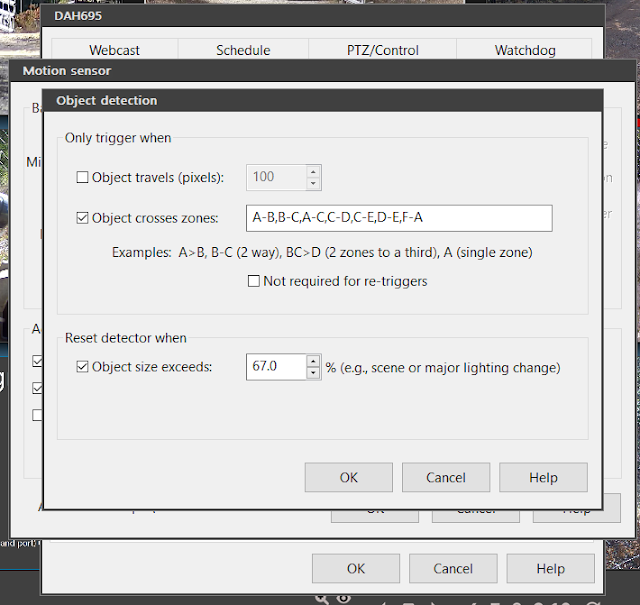
It got me thinking the one trigger point might not be enough so I reduced the 3 zones I have and added 3 more to hopefully trigger earlier and more often in case they are getting dropped or something. Unfortunately all the zones you are not currently editing show up as the same color so they look like one but there are 6, A thru F.
Basically 4 strip zones to catch "vertical" movement and 2 block sections on right to catch going into turn around or on up drive.
With the crossings set up like this. (Note F was added between the road and A which starts at the gate.)


I also cranked the sensitivity a bit from min object size of 675 to 525 which should be about the size of a car at the gate.

One think I did not mention earlier is there is also a motion detector at the gate that triggers the driveway cams as well. It is a bit laggy but unaffected by the headlights going by. So at night I only use that to trigger the LPR by setting a separate profile and scheduling the switch.
Note no motion sensing selected but the LPR AI is configured for this profile as well.
Note the relative to sunrise/sunset option and you can click on "Days" button to select a group of days or a single day.

Update 2/7/2020:

Another gotcha. Not sure how but it appears my LPR config disappeared from both profiles. It posted a pic at 7:28 AM UTC (1:28 AM local the schedule is using) but when I looked to see how it did with today's FedEx delivery there was nothing. And when I checked my settings in BI5 I found the LPR disabled with no config info. The global profile override schedule was still in place. I then noticed the profile number was not in place on the frame as it had been when the schedule was working. Trying to go into the cameras motion detection config seemed to make the app unresponsive till I tried to close the app at which time the motion detection config dialog appeared.
Note blank clips and motion detection preview window
Restarting the console told me an update was ready so I let that install. After the profile indicator was back on the camera frame. The LPR config was still there. Makes me think a subsystem died or such. Note the clip images were still black so I did a DB repair which sorted that. However I found the active part of zone F was inverted. I'll have to keep a closer eye on this and see if there is some more monitoring I can setup.

Update 2/25/2020 New Issue.

Seem to have found a new issue with BI5. Looks like my motion detection quit working on all cams about 3 days ago. Not positive but I think a Blue Iris subsystem died without notification. This is VERY bad. Not only has no LPR posts been made for 3 days but no video was marked with motion events either from BI motion detection or by external triggers. Rebooted box and motion detection is working again but not sure how I can even monitor for this yet.

Update 3/13/2020 swapped out Reolink with Dahua

Moved the 2 Reolink to other locations / servers since BI5 does not seem to like them which seem to have sorted the corrupted and hung video issues. I also let me add trip line triggers from in cam detection to help reduce lag. Unfortunately it has not done much for improving detection as you can see here.
The shot on March 13, 2020, 12:03 a.m. UTC looks almost perfect those the plate was still not clear enough for it to work. 


I think that is about it for this LPR. There are some other options to try on my todo list.